Install the plugin
Upload and activate WP AI Chatbot from the WordPress dashboard.

WP AI Chatbot adds an Ask AI assistant to WordPress websites. It answers from approved website pages and priority business information, captures support leads, and only appears when the site has an active subscription or free trial.
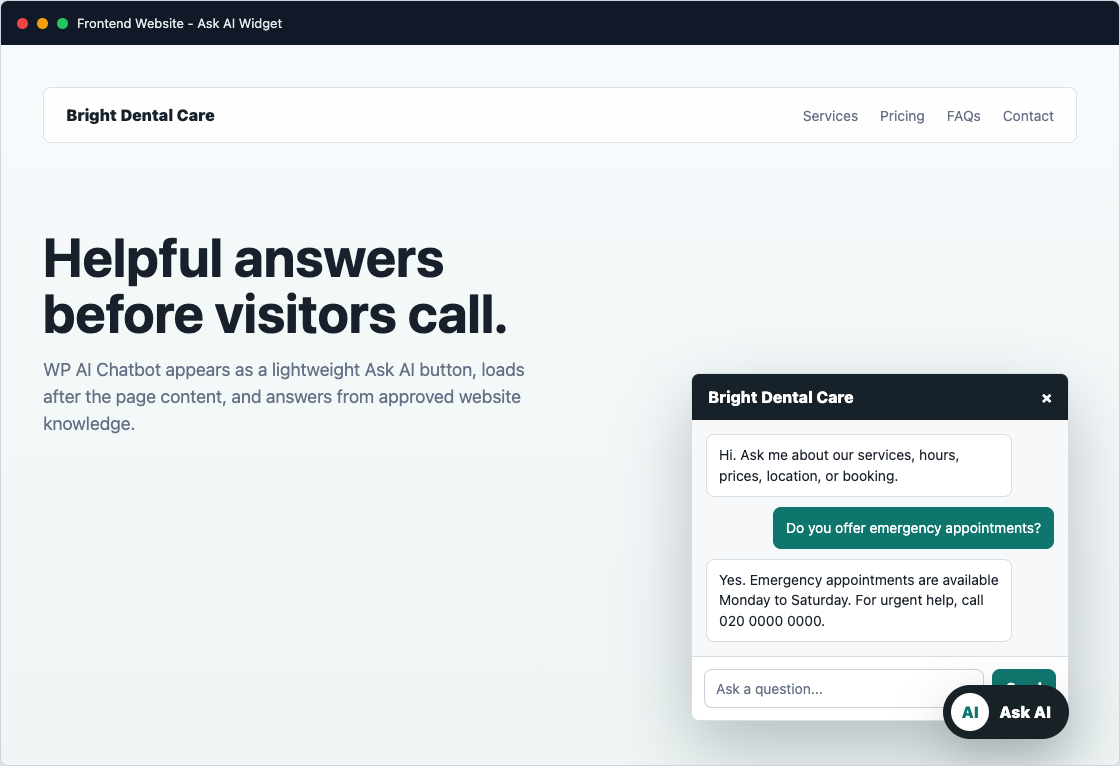
The plugin is designed so a website owner can install it, subscribe, choose the most important content, and launch the chatbot without managing a separate AI server.
Upload and activate WP AI Chatbot from the WordPress dashboard.
Choose monthly or annual billing. Stripe handles the card details.
Pick important pages, add custom URLs, and add any private service notes.
The frontend widget appears on allowed pages once access is active or trialing.
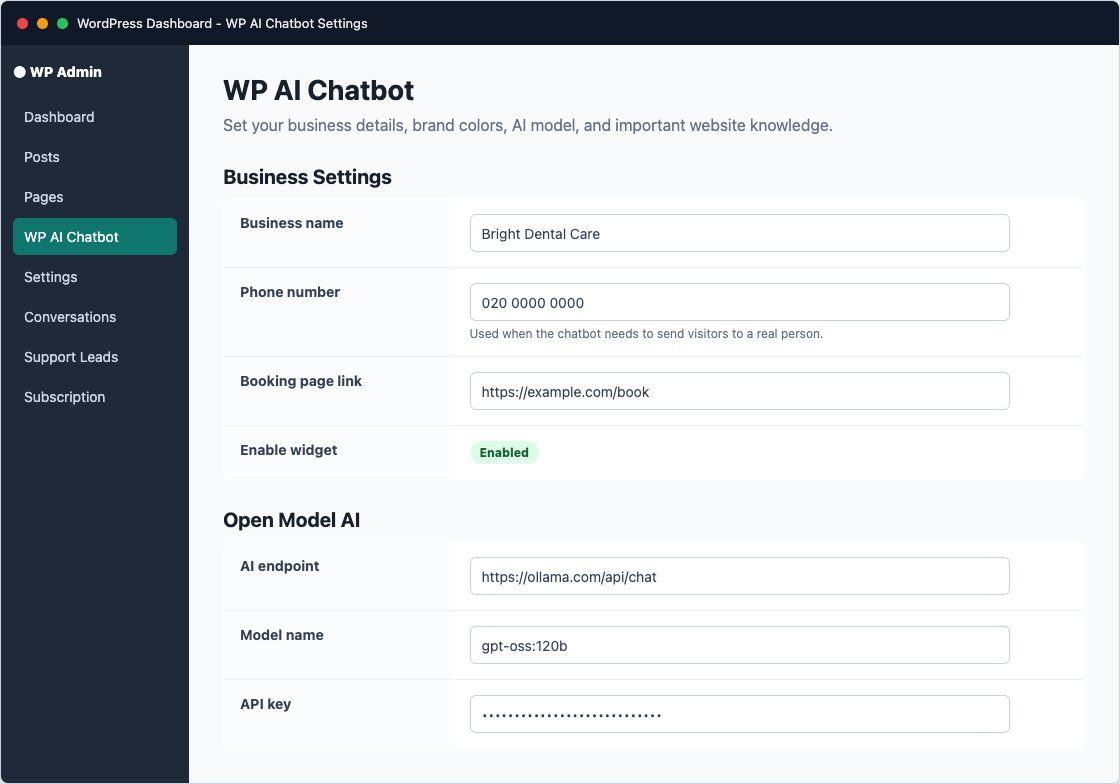
The settings screen controls the business name, phone number, booking link, support email, widget colors, and the default AI endpoint.
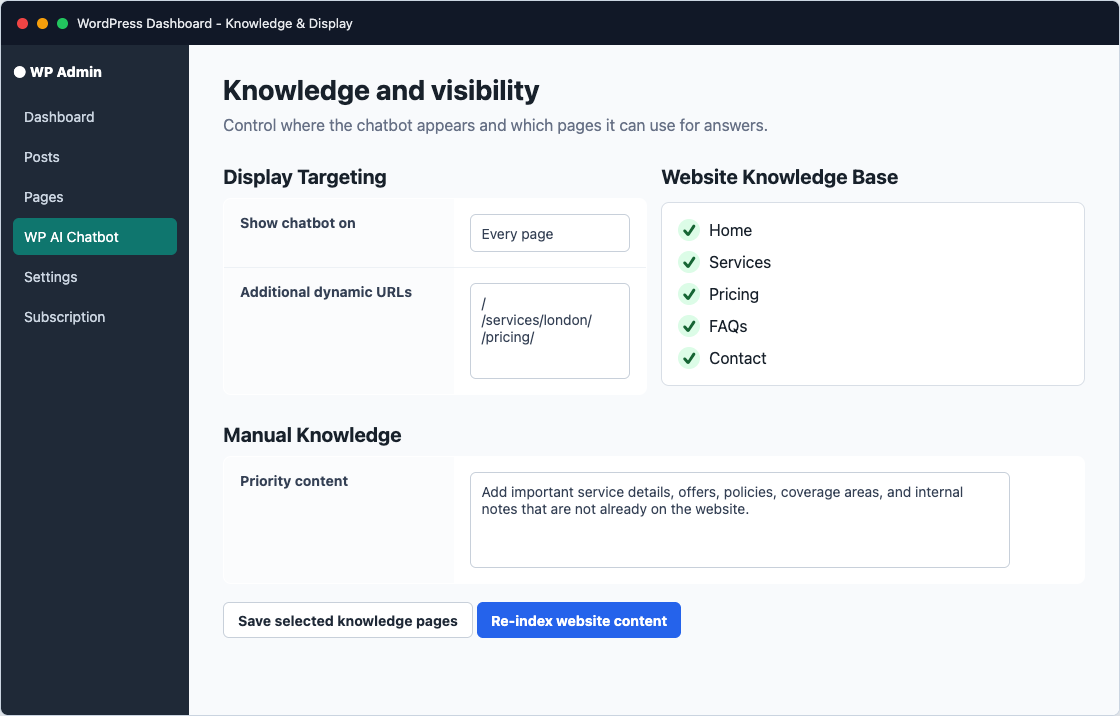
Instead of crawling everything, WP AI Chatbot uses the pages and URLs the owner approves. This keeps answers focused and avoids irrelevant content.
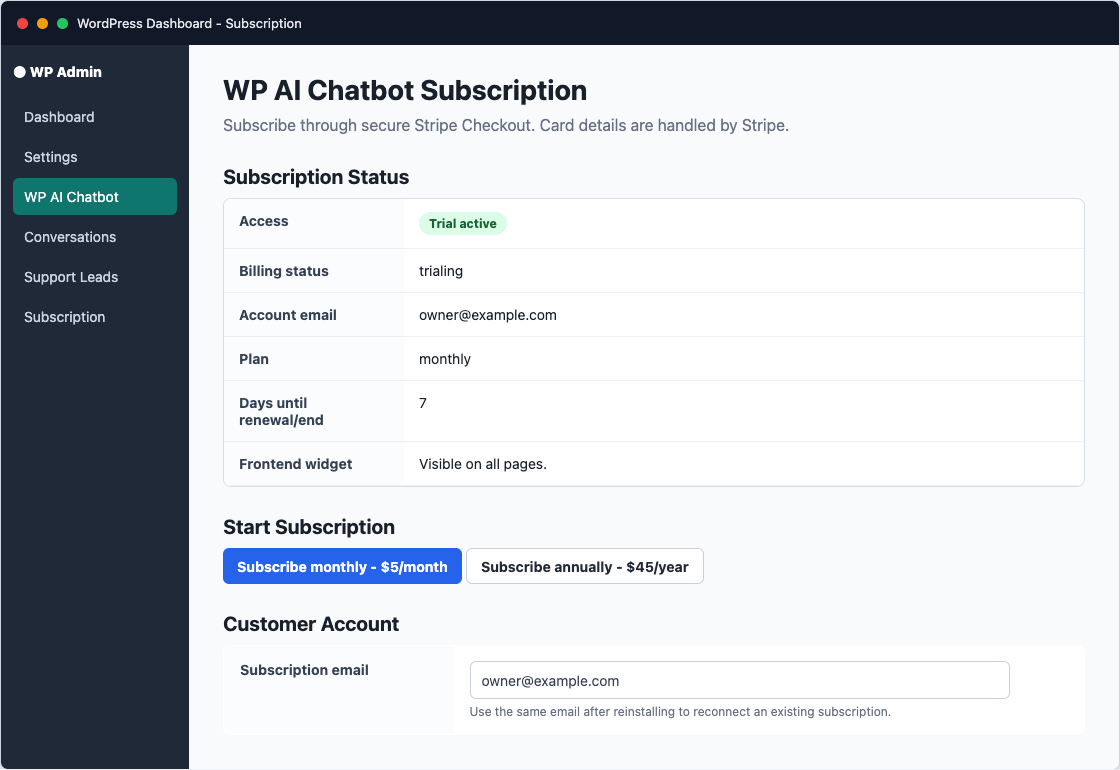
The Subscription screen confirms whether the website is trialing, active, cancelled, or expired. It also shows whether the frontend widget should be visible.
The chatbot is lazy-loaded to protect page speed. The full chat window loads after a click, scroll, interaction, or short delay, so core website content stays fast.
The chatbot summarises answers from approved knowledge instead of pasting long page text.
Booking URLs, recommended pages, and phone numbers are clickable inside the chat.
If the chatbot cannot answer, visitors can leave their name, email, phone, and message.
The widget stays outside the critical rendering path to reduce impact on Core Web Vitals.
Before launching, check the Subscription screen, enable the widget, set display mode to Every page unless you need targeting, then test the homepage and one inner page in a private browser window.
$5
Per month after the 7-day free trial.
$45
Per year after the 7-day free trial.